



If you landed here searching for “HRMS Globex,” you’re almost certainly an employee trying to sign in, download a payslip, or figure out why the app won’t load. HRMS Globex is an employer-issued HR portal, not a public software product you can sign up for. It handles attendance, payroll, leave, and employee records for organizations that have deployed it internally, and access is provisioned by your company’s HR or IT team, not through open registration.
That one distinction clears up almost every confusing search result you’ll find on this topic. Let’s get into what actually matters.
Why So Much Online Content Gets This Wrong

Here’s something worth knowing before you read anywhere else: most articles about HRMS Globex treat it like a commercial SaaS platform, complete with pricing tiers, feature comparisons against BambooHR or Zoho People, and vague claims about “AI-powered future roadmaps.”
That’s not accurate. HRMS Globex, at its root, is a login-gated internal portal. There’s no public pricing page because there’s nothing to buy. There’s no free trial because there’s nothing to trial. If you’re evaluating HR software for your own business, comparing it feature-for-feature against BambooHR or GreytHR won’t get you anywhere useful, because the specs simply aren’t published for outsiders to see.
If you’re an employee, though, none of that matters. What you need is practical: how to sign in, how to fix login errors, how payroll works, and whether the mobile app is worth using.
HRMS Globex Sign In: The Real Login Flow
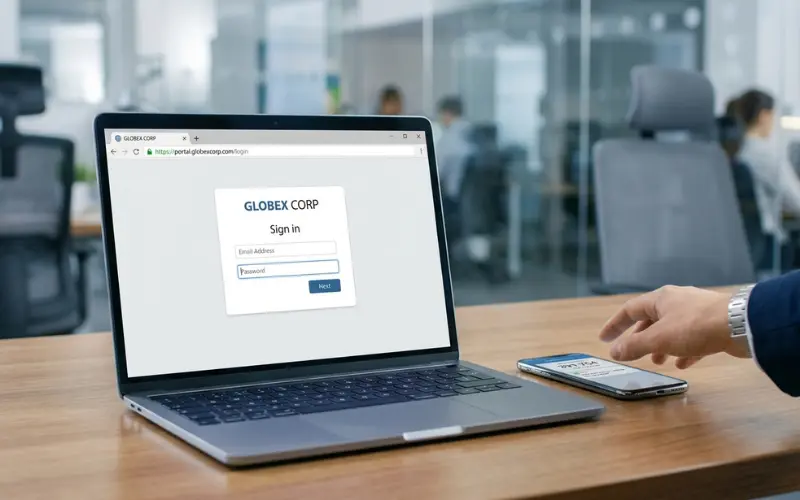
Every organization customizes its portal slightly, but the sign-in process generally follows the same pattern:
- Open the login link your HR department shared, usually a company-branded subdomain
- Enter your employee ID or the email address registered with HR
- Type your password
- Complete a second verification step if your company has MFA turned on (an OTP by SMS or an authenticator app code)
- You’ll land on a dashboard scoped to your role
One thing worth flagging that most guides skip: the login page URL is different for every company using the platform. There’s no single universal “HRMS Globex” web address that works for everyone. If you google the product name and land on the wrong portal, you’ll get an authentication failure that looks like a bug but is actually just a mismatched account.
The Login Problem Wasn’t Actually the Portal
I once helped troubleshoot an HRMS Globex login that looked like a system failure at first. The employee had tried several times, but the real issue turned out to be an outdated login link rather than a broken account. After getting the current company-specific URL from HR and using a private browser window, the portal opened normally. That experience reinforced a simple rule I now follow with employer-managed HR systems: check the correct login URL and clear basic browser issues before assuming the platform itself is down.
If Your Password Isn’t Working

Before you assume the system is broken, run through this quickly:
- Check for a stray space copied in from a password manager or email
- Confirm caps lock isn’t on, since most HR portals are case-sensitive
- Try a private browser window, since cached login tokens sometimes cause silent failures
- If you’ve mistyped it more than 3-4 times, expect a temporary lockout as a security measure, not a permanent one
If none of that fixes it, use the “Forgot Password” link, verify with your employee code, and set a new one. When that still fails, it’s almost always an account-side issue (deactivated access, an HR system sync delay after a role change) rather than something you can self-resolve. Skip the retries and go straight to your IT helpdesk at that point, since repeated failed attempts can extend the lockout window instead of shortening it.
HRMS Globex Payroll: How the Numbers Actually Flow
Payroll on platforms like this isn’t a standalone calculation. It’s the output of everything else you’ve logged during the pay cycle.
Here’s the practical chain most employees never see explained clearly:
- Your attendance and shift data gets logged daily through clock-in/clock-out records
- Approved leave gets subtracted or accounted for based on your leave type and entitlement
- At the end of the cycle, the payroll module pulls both data sets and calculates gross pay, statutory deductions, and net pay automatically
- A payslip gets generated and pushed to your dashboard, usually as a downloadable PDF
This matters practically for one reason: if your payslip looks wrong, the error is rarely in the payroll module itself. It’s almost always upstream, a missed clock-in that never got corrected, a leave request stuck in “pending” instead of “approved,” or an attendance exception nobody flagged. Before you raise a payroll dispute, check your attendance log for that period first. It saves a back-and-forth with HR nine times out of ten.
To download a payslip: open the payroll section on your dashboard, select the pay period from the dropdown, and export it as a PDF. If a period is missing entirely, it usually means payroll for that cycle hasn’t been processed yet rather than a technical fault.
HRMS Globex App: Mobile Access Explained
Mobile access on these platforms typically comes in two flavors, and the guides floating around online rarely separate them clearly:
- A responsive mobile web view, accessed through your phone’s browser using the same login link
- A dedicated native app, which some organizations enable and others don’t
Whether you get the second option depends entirely on how your company configured the rollout, not on the platform itself. If you’re searching app stores for “HRMS Globex” and coming up empty, that’s likely why. Ask your HR team directly whether a native app exists for your organization before assuming something’s broken on your end. For general HR-adjacent tools that do work the same way across devices without needing IT approval, it’s worth keeping a shortlist of solid productivity apps on hand for personal task tracking alongside your work portal.
Mobile access matters most for a specific group: field staff, shift workers, and anyone without daily desk access. If that’s you, push your HR team to confirm mobile availability during onboarding rather than discovering the gap later.
What the Dashboards Actually Show You
This is where role matters more than most articles acknowledge. The same portal looks completely different depending on who’s logged in.
| Dashboard | What You’ll See | Who Uses It |
|---|---|---|
| Employee | Personal attendance, leave balance, payslips, pending approvals | Every staff member |
| Manager | Team attendance, leave requests awaiting sign-off, review status for direct reports | Line managers and team leads |
| HR | Org-wide headcount, payroll cycle status, compliance flags | HR staff and department heads |
| Admin | User roles, permissions, module settings, audit logs | IT and senior HR administrators |
If you’re a manager and you’re not seeing team-level leave requests, that’s usually a permissions issue your admin needs to fix, not a feature that doesn’t exist.
Security Nuances Worth Knowing (That Most Guides Skip)
Most articles mention encryption and role-based access and stop there. A couple of details actually matter day to day:
- Session timeouts are common on shared or public devices. If you’re logging in from a shared workstation (common in retail or manufacturing settings), expect the system to log you out faster than it would on your personal laptop. That’s intentional, not a glitch.
- Payroll visibility is locked to you and authorized HR staff by default. Your manager cannot see your salary breakdown unless your organization has specifically configured otherwise, which is rare.
- Audit logs track more than logins. Every profile edit, leave submission, and document upload gets timestamped. If you’re disputing a change you didn’t make, ask HR to pull the audit trail instead of arguing from memory.
A Quick Reality Check Before You Compare It to Other HR Tools
If you’re a business decision-maker who stumbled on this page while researching HR software (rather than an employee trying to log in), here’s the honest take: you can’t shop for HRMS Globex the way you’d shop for BambooHR or Keka. There’s no demo request form, no published pricing, and no independent way to verify feature claims beyond what’s visible inside an active deployment.
If that’s genuinely your situation, look at platforms built for open evaluation instead. And if part of your evaluation criteria includes how well a vendor is layering in automation, it’s worth understanding what serious AI tools for business growth actually look like right now, since a lot of “AI-powered HR” marketing claims don’t hold up under a real demo.
FAQ
1. Is HRMS Globex free to use?
There’s no cost to you as an employee since access comes through your employer. It isn’t sold as a public subscription, so “free” or “paid” doesn’t really apply the way it would for consumer software.
2. Can I access HRMS Globex without a company account?
No. There’s no public self-registration path. Every account is provisioned by an organization’s HR or IT team, tied to your employment record.
3. Why does my HRMS Globex login link look different from a coworker’s at another company?
Because each organization runs its own branded instance of the portal on its own subdomain. There’s no shared universal login page across companies.
4. What do I do if my payslip amount looks wrong?
Check your attendance and leave records for that pay cycle first. Most payroll discrepancies trace back to an unapproved leave request or a missed attendance entry, not a calculation error.
5. Does HRMS Globex work on mobile without an app?
Yes, in most deployments. A mobile browser using your same login credentials will load a responsive version even if your company hasn’t enabled a dedicated app.
6. Why did I get locked out after a few failed login attempts?
That’s a built-in security measure, not a system error. Repeated incorrect attempts trigger a temporary lockout to prevent unauthorized access attempts.
7. Can my manager see my salary details on HRMS Globex?
Not by default. Payroll data is restricted to you and authorized HR or payroll staff through role-based access control.
8. Who do I contact if HRMS Globex is down for everyone, not just me?
Report it to your internal IT helpdesk rather than searching for a public status page. Since each deployment is company-managed, there’s no centralized outage tracker to check.
